If something is still unclear
Frequently asked questions
You will find answers to a lot of the questions from this page. Please read and if some info is still missing, just write to us.
Get in touch- BOUK Property Management System
-
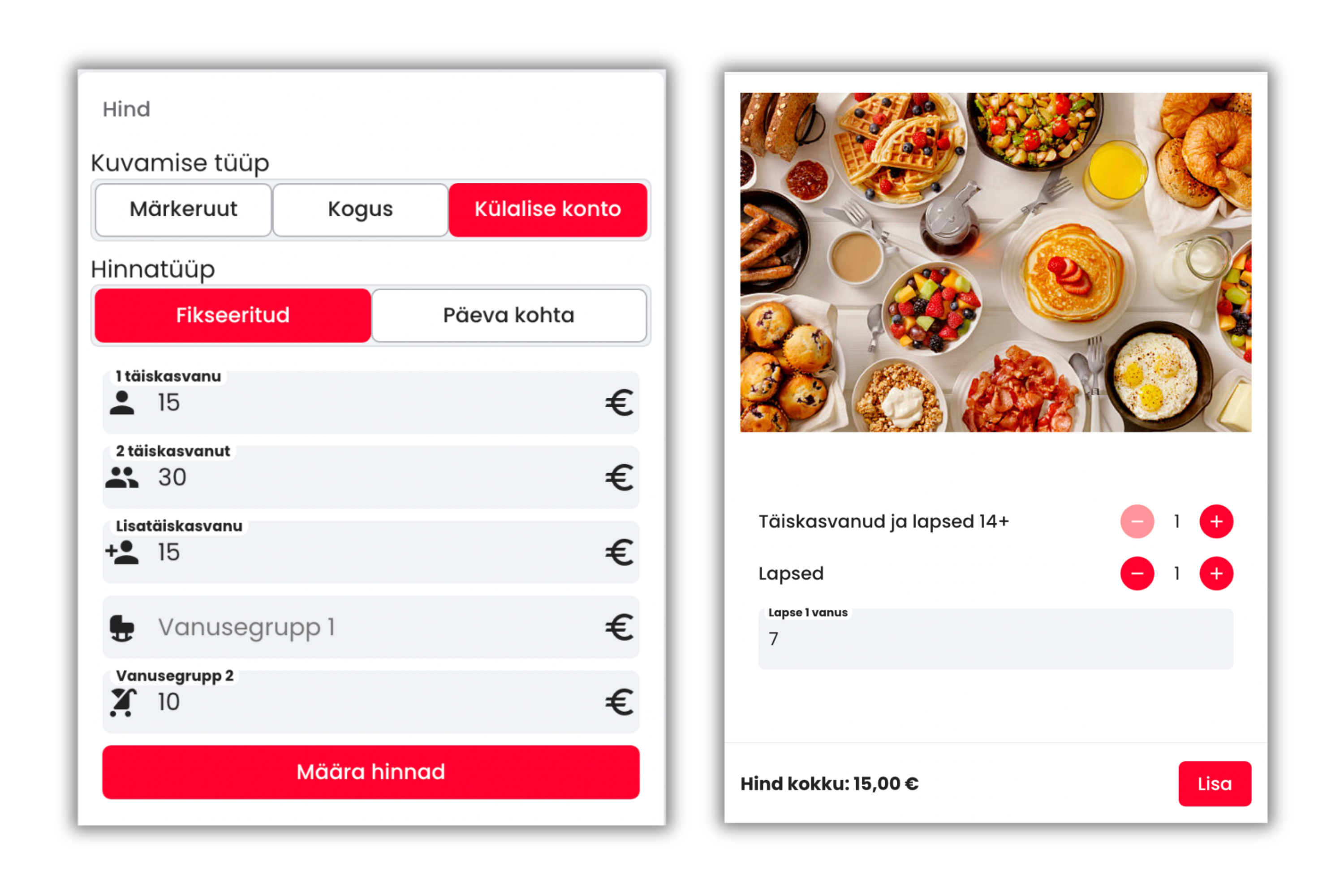
Can an extra service have a different price set for adults and children?
Yes, you can. Follow these steps:
- Select ‘SETTINGS’ from the left menu, then choose ‘EXTRAS’;
- Select the additional service for which you want to set a price;
- Under the ‘PRICE’ column in the middle section, select the guest account;
- Assign 1.2 and set the price for adults;
- Set the price for children according to the age range defined in the accommodation settings. If this has not been set previously, you need to configure it now;
- To confirm, click ‘SET PRICE’.”
Can the price of an extra service in BOUK be set per night or for the entire booking?
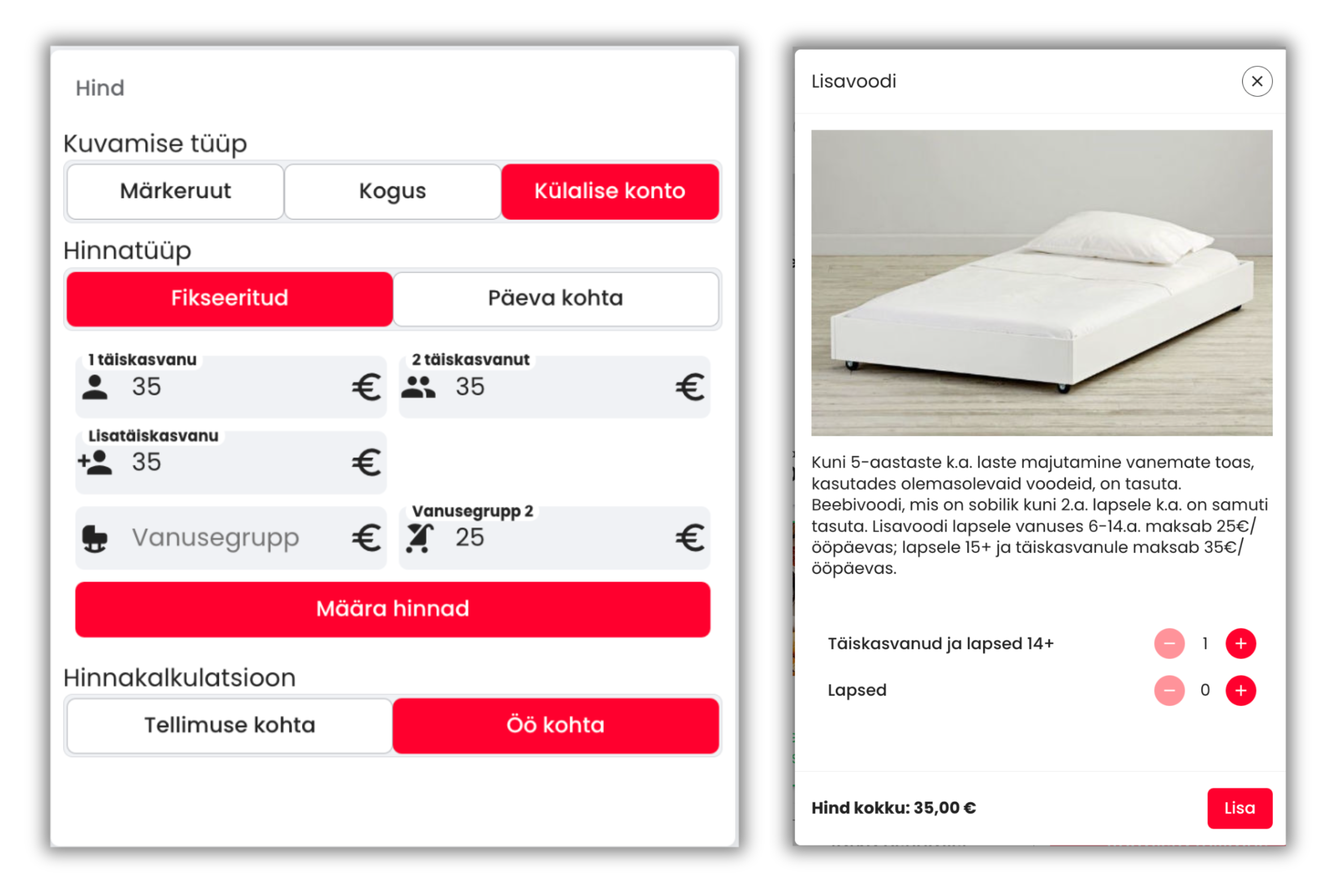
Yes, you can. Follow these steps:
- In the BOUK admin view, select ‘SETTINGS’ from the left menu and then choose ‘EXTRAS’;
- Select the additional service for which you want to set a price;
- In the middle column under ‘PRICE CALCULATION’, you can choose to set the price for the additional service either per night or for the entire booking period.
Did you know that you can set a minimum advance booking time for a price or package?
If you want customers to book packages, prices, or an entire property a few days in advance, BOUK offers a solution – minimum advance booking time. Here’s how to set it up:
- Open the BOUK admin view and select ‘SETTINGS’ from the left menu;
- From the horizontal menu, choose ‘PRICES’;
- Select the price or package to which you want to apply the restriction;
- In the left column under ‘Show advanced settings’, you can set the minimum advance booking time in days or hours.
This functionality can also be used for marketing – offer a discount for early bookings to encourage customers to book in advance!
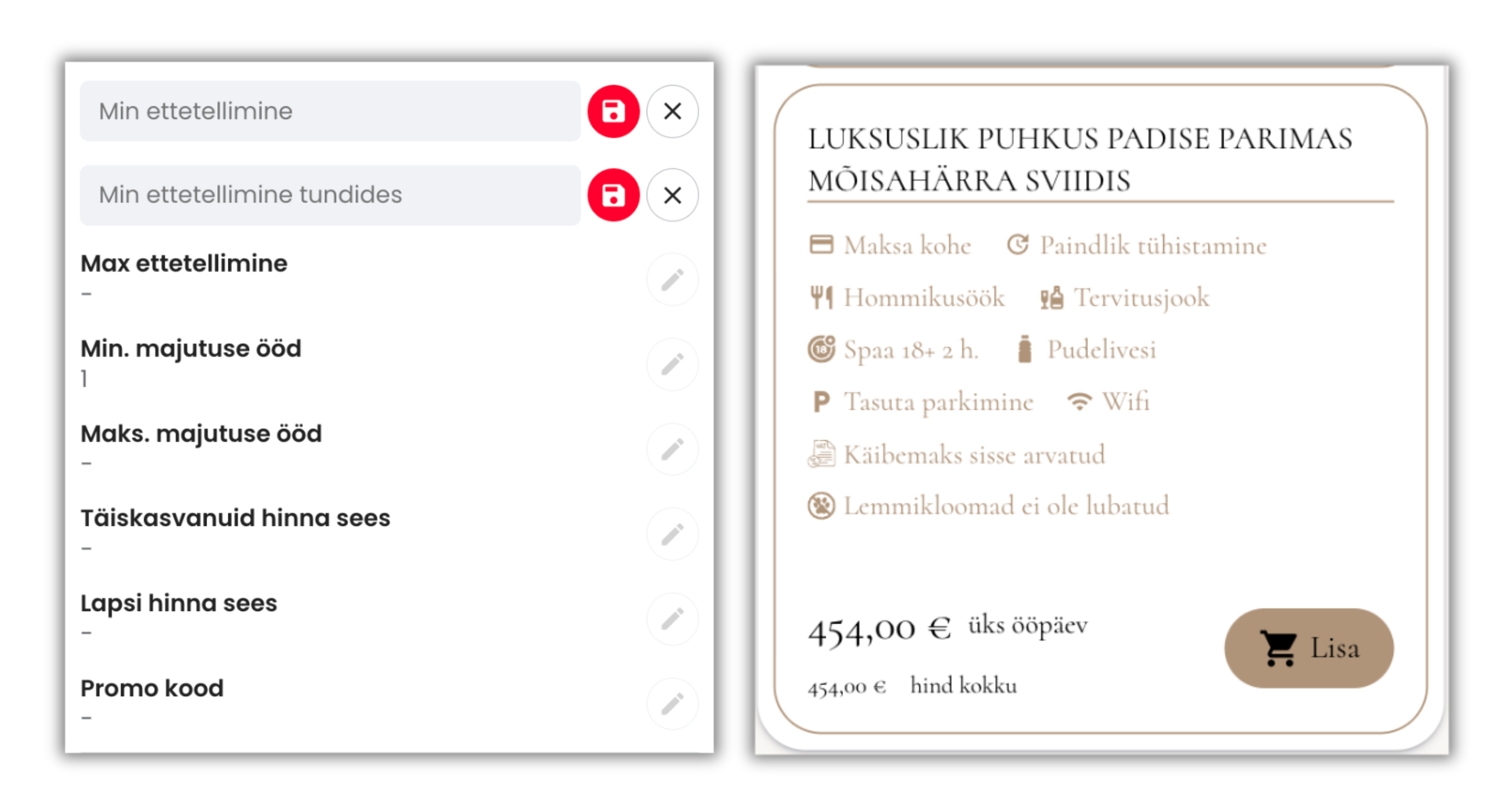
Can a minimum advance booking time in hours be set for an additional service in BOUK?
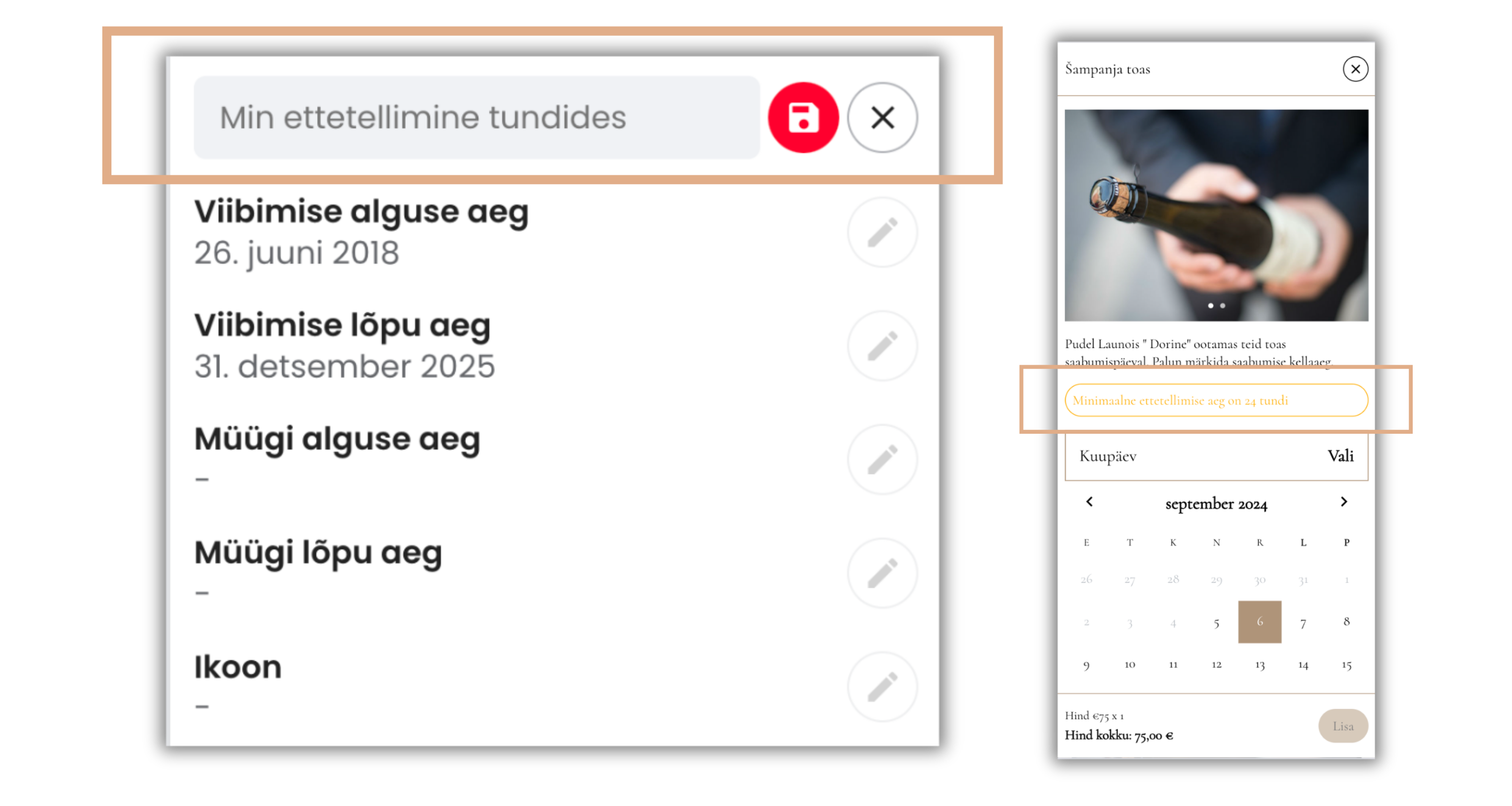
Yes, you can. If you’d like to use this feature, follow these steps:
- In the BOUK admin view, select ‘SETTINGS’ from the left menu;
- Then choose ‘EXTRAS’ from the horizontal menu;
- Select the additional service for which you want to set an advance booking time;
- In the left column, click ‘Show advanced settings’;
- Under ‘Min advance booking in hours’, specify the required number of hours for advance booking, e.g., 24 hours.
Can a quantity limit be set for a promo code?
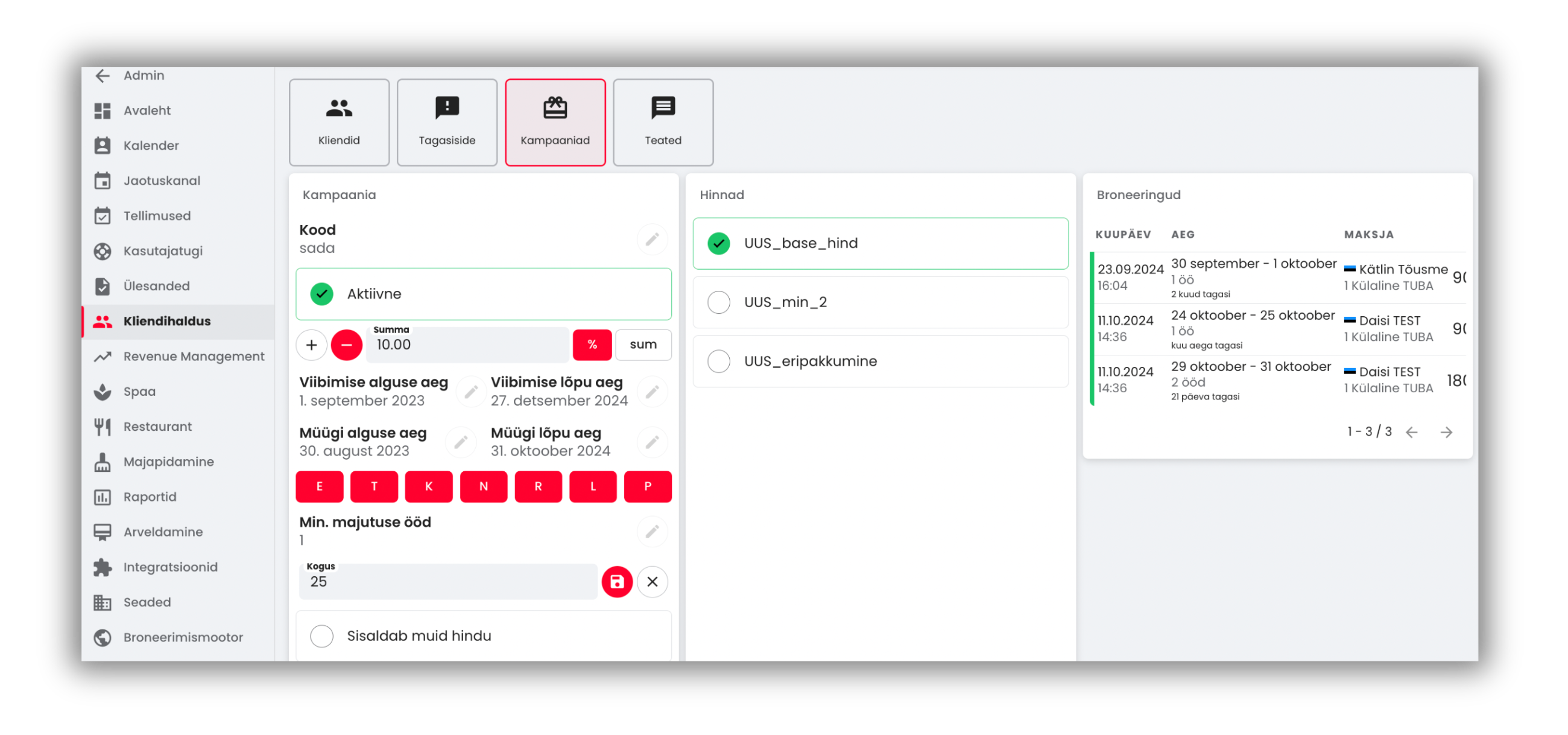
Yes, you can. If you’d like to use this feature, follow these steps:
- Open the BOUK admin view and select ‘CUSTOMER MANAGEMENT’ from the left menu;
- Then choose ‘CAMPAIGNS’ from the horizontal menu;
- Click ‘ADD’ in the top-right corner to create a new promo code;
- Specify the promo code name, the campaign’s sales and accommodation period, the discount from the existing price(s), and the maximum quantity of offers you want to sell with this promo code.
RESULT – From the promo codes list, you can monitor how well and successfully the campaign has performed!
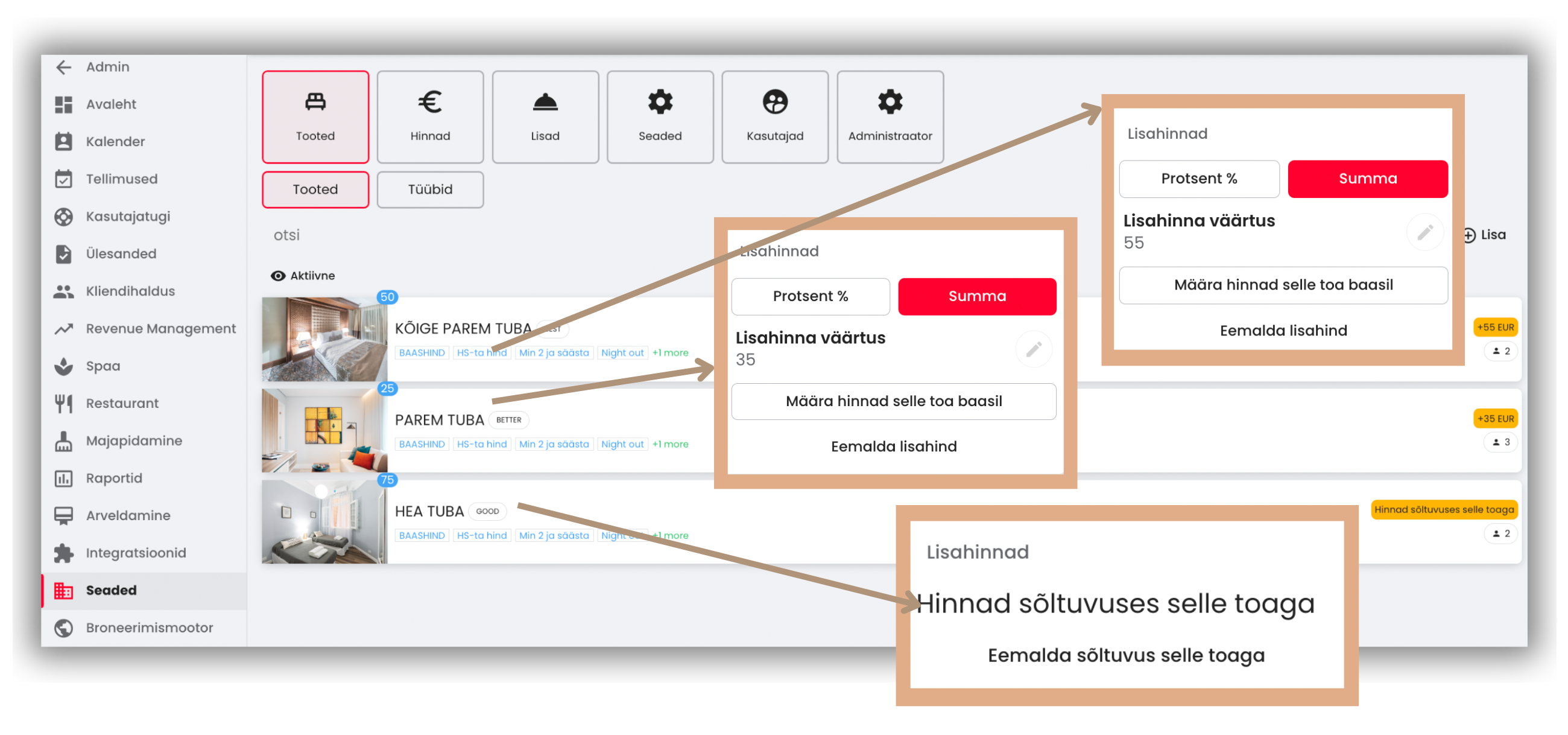
Did you know that you can now set a price increment for a product, such as a house, room, or apartment?
If you want to save time and price your accommodation through one base product so that the prices of all other products adjust accordingly, follow these steps:
- Open the BOUK admin view and select ‘SETTINGS’ from the left menu;
- Choose ‘PRODUCTS’ from the horizontal menu;
- Select the product you want to designate as the base product – for example, “Standard Room” will become the base product that all other products depend on;
- Now assign price increments to all other products relative to the base product – for example, “Superior Room” is +35€, and “Deluxe Room” is +55€.
RESULT – By updating prices, you’ll now save 10-15 minutes every workday, giving you more time to focus on something new and exciting!
Can special requests from clients be submitted and confirmed through BOUK?
To allow clients to send you their special requests along with their booking, activate the feature in the BOUK booking engine skin.
– In the “Guest booking” module, select “Special requests enabled” -> “Yes!”When booking, the client can submit a special request, and you’ll be notified by email and/or in the order view.
You can then confirm or decline the request via BOUK – the client will automatically receive an email notification with your response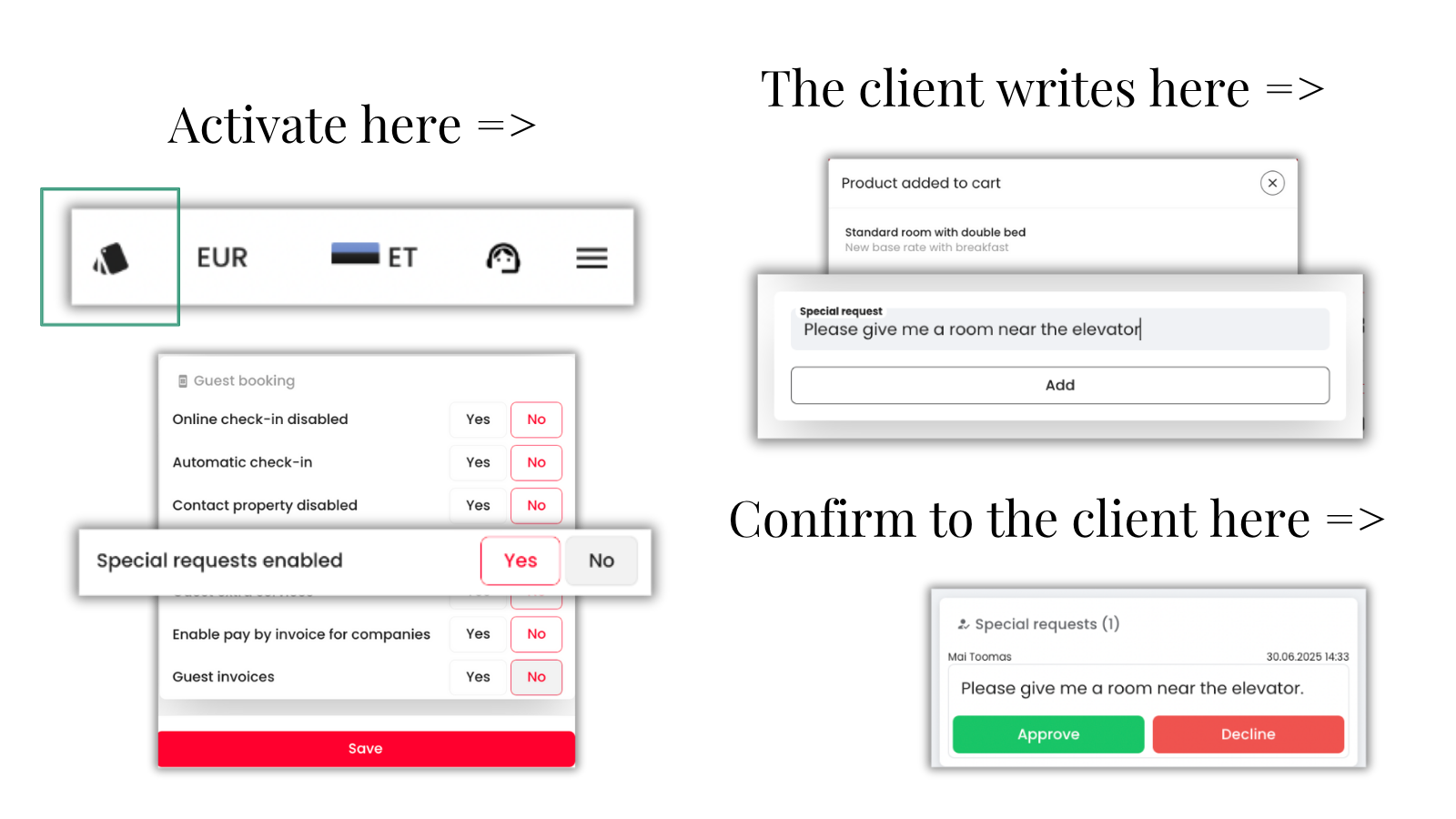
Can a guest view all my accommodation properties in a group view, filter only the available offers, and also see their locations on a map?
Yes, you can. Here’s how:
- Select “Settings” from the left-hand menu and then “Settings” from the top menu.
- Select “Group” from the top menu.
- Add the location details on the “Place” page under “Location”.
- Add the map link, as well as the latitude and longitude of the accommodation property.
- Open the booking page and activate the following options in the design settings: Show filters & Show map filter
See examples:
Sõbra Kinnisvara group view:
https://bouk.io/booking/sobrakinnisvara/hotelsLöyly group view:
https://bouk.io/booking/loyly/hotels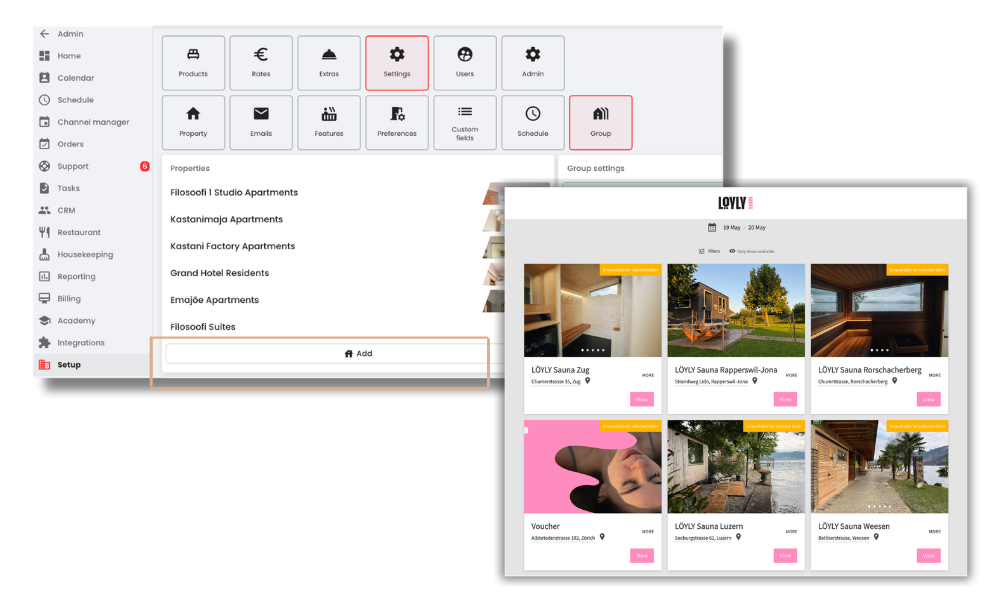
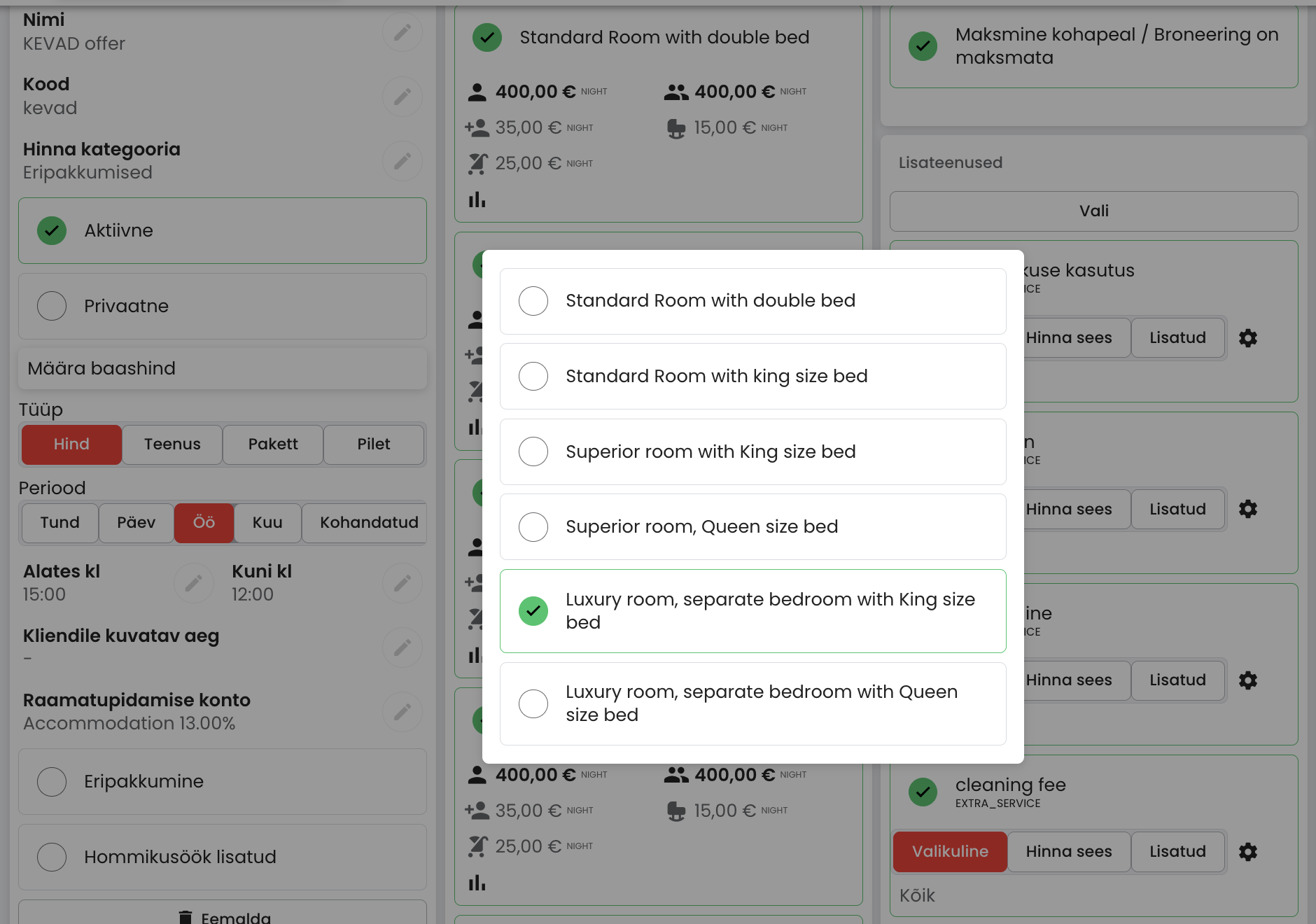
Can add-on services be sold only with a specific room type?
Yes, they can.
With this feature, you can assign add-on services and products only to selected room types. For example, if pets are allowed only in certain room types, the “Pet included” add-on service will only be displayed to guests booking those specific rooms. The same logic also applies to extra beds and other room-type-specific services.
Here’s how:
- Select “Settings” from the menu and then “Prices” from the top menu;
- Open the price code;
- Select under EXTRA SERVICES the add-on service you need, click ALL;
- Select the specific room types where you want the add-on service to be displayed;
- By default, the add-on service applies to all bookable room types.
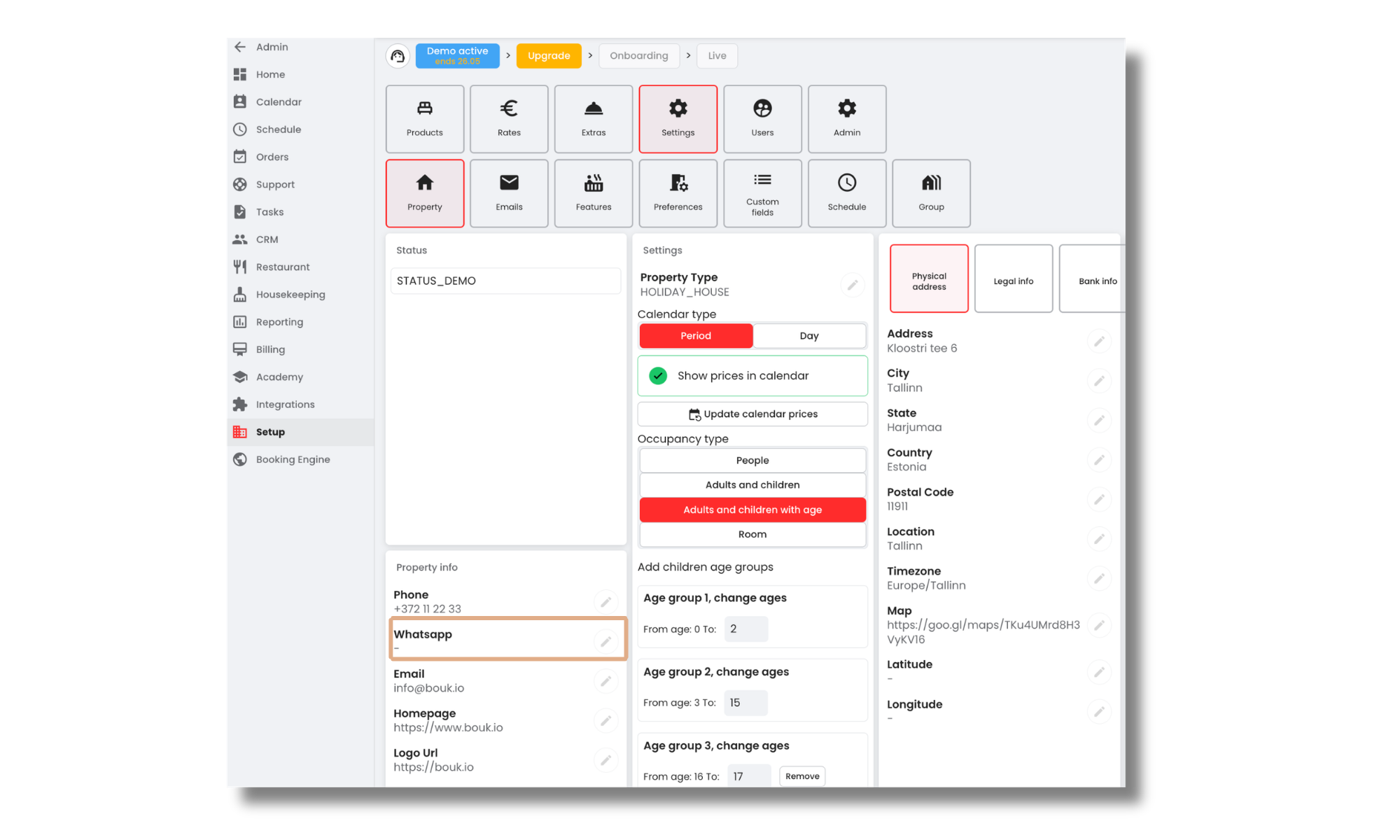
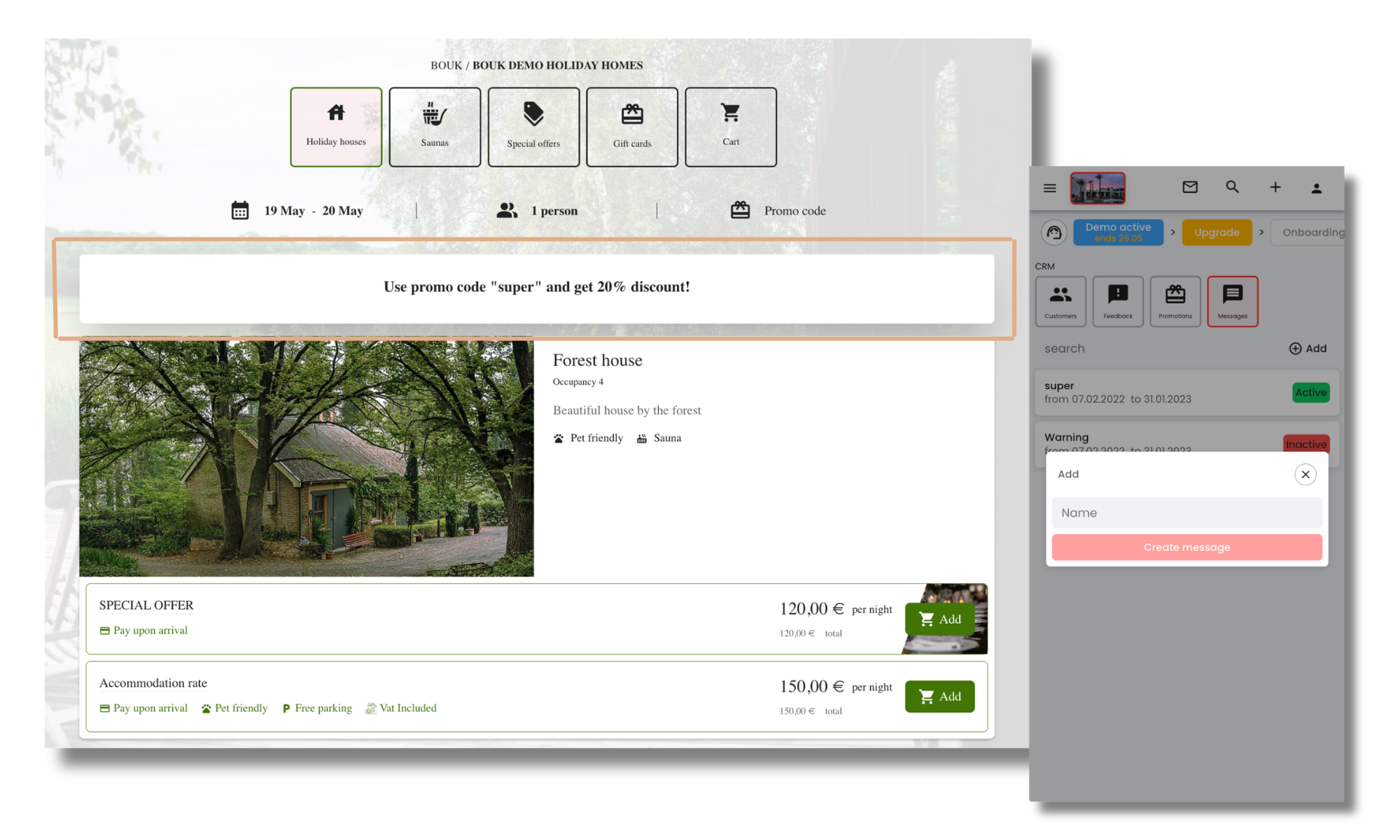
Can a guest contact me via WhatsApp as well?
Can different notifications be displayed for different product types in the guest view?
Yes, they can. Here’s how:
- Open “Customer Management” from the menu.
- Select “Notifications”.
- Add a new notification or edit an existing one.
- Choose which product type’s booking window the notification should be displayed in.
- See an example in the guest view: https://bouk.io/booking/demo/283/rooms
This way, the guest sees important information that is relevant to their specific booking.
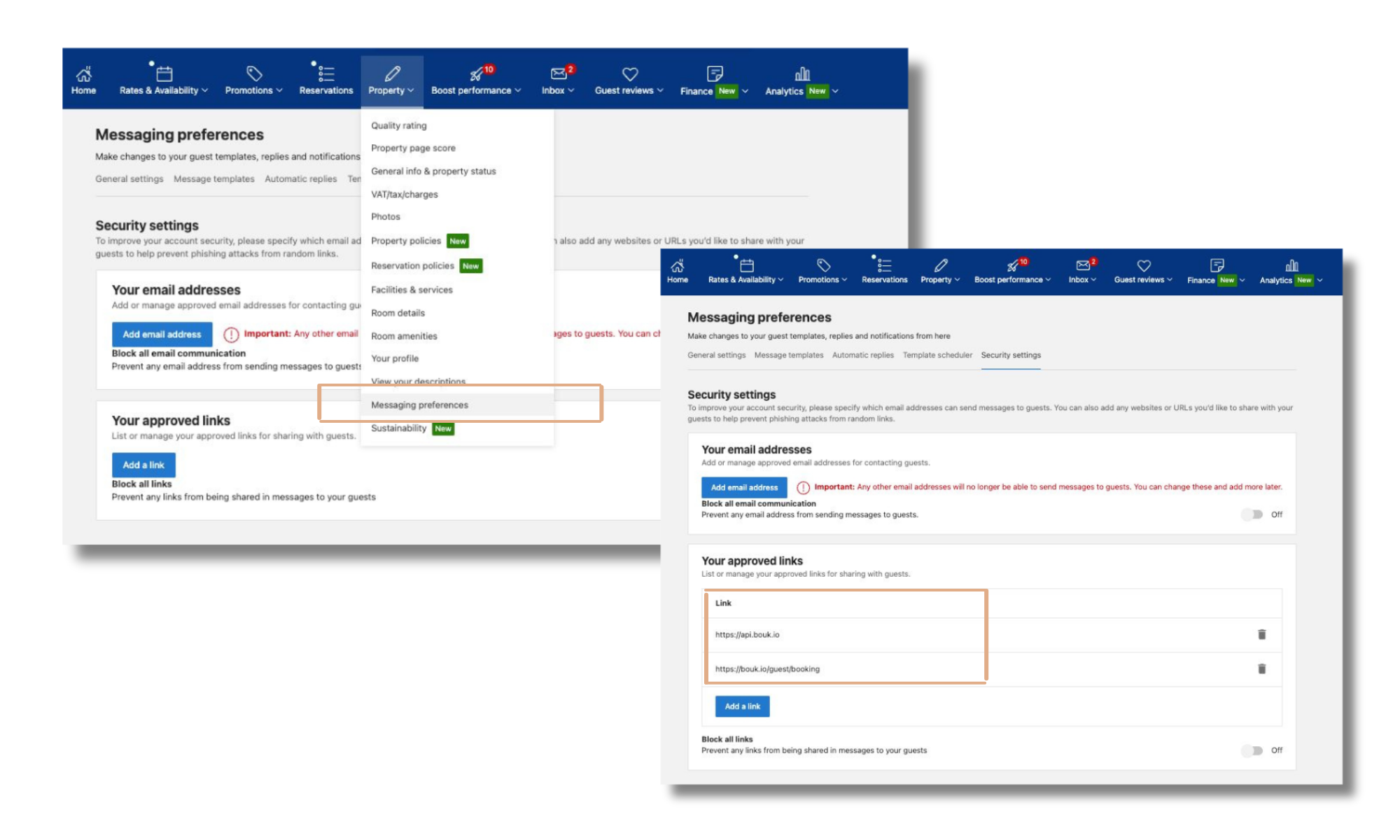
Setting up Booking.com links and email
Booking.com has updated its security requirements, and we recommend reviewing two important settings.
Verified links
Booking.com recommends verifying the links that guests can open within their platform.
Use the following links: “https://api.bouk.io” and “https://bouk.io/guest/booking”. For example, if you send a welcome email from BOUK with an online check-in link, the verified links setting helps ensure that these links reach the guest without any issues.Automated email management
If you wish, you can avoid a situation where the guest receives the same information from both Booking.com and BOUK at the same time. You can disable the automated emails sent by BOUK if you have already activated emails with the same content in the Booking.com environment.
Important: Both settings must be configured directly through the Booking.com Extranet. Log in with your Booking.com account, review Booking.com’s instructions, and make the necessary settings.
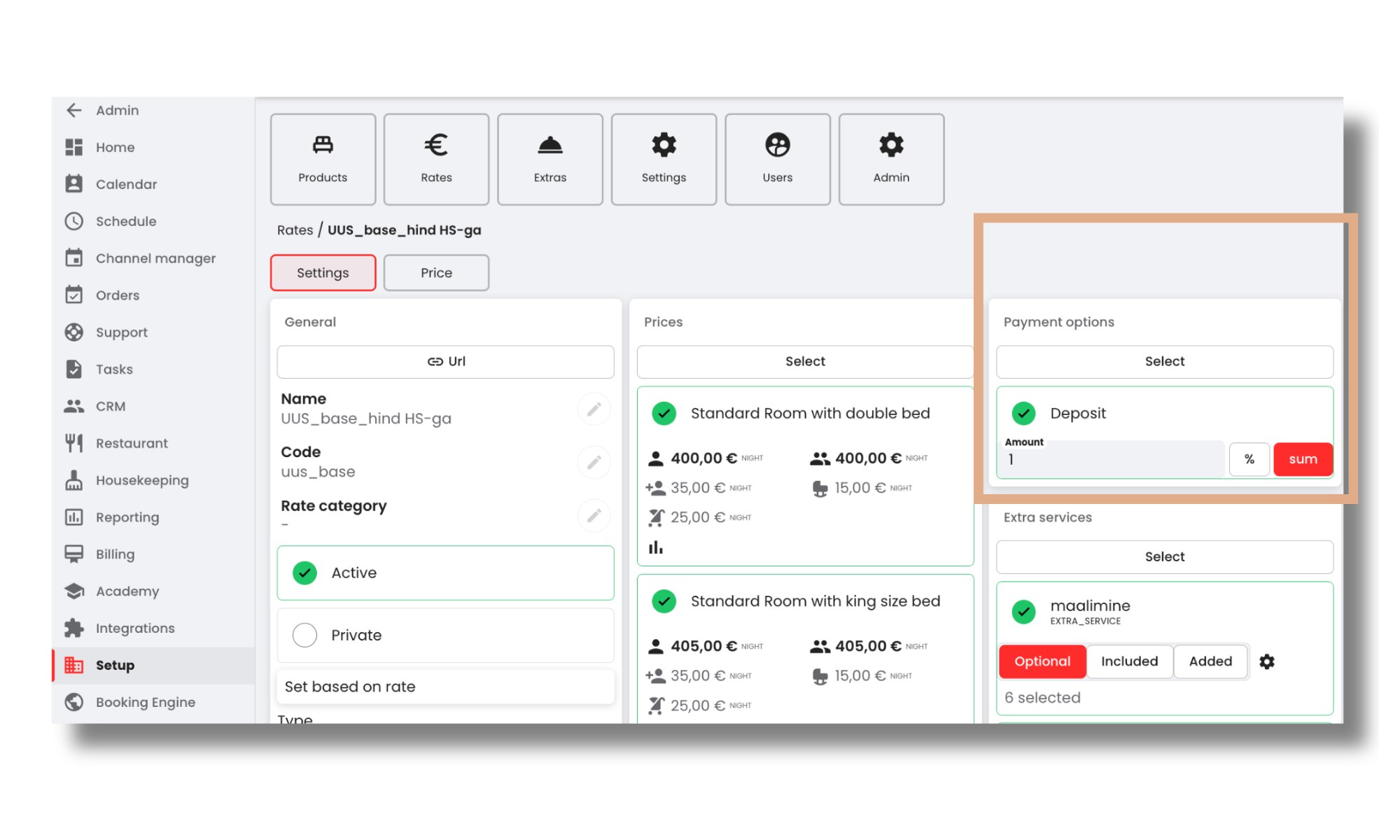
Can a deposit payment be requested from the guest at the time of booking?
Yes, it can. Here’s how:
- Set the payment terms for the price code to “Deposit”.
- Define the amount or percentage of the deposit you would like to request from the guest.
- For example: if the deposit is set to 50% and the guest’s total booking amount is €780, the guest will pay €390 at the time of booking.
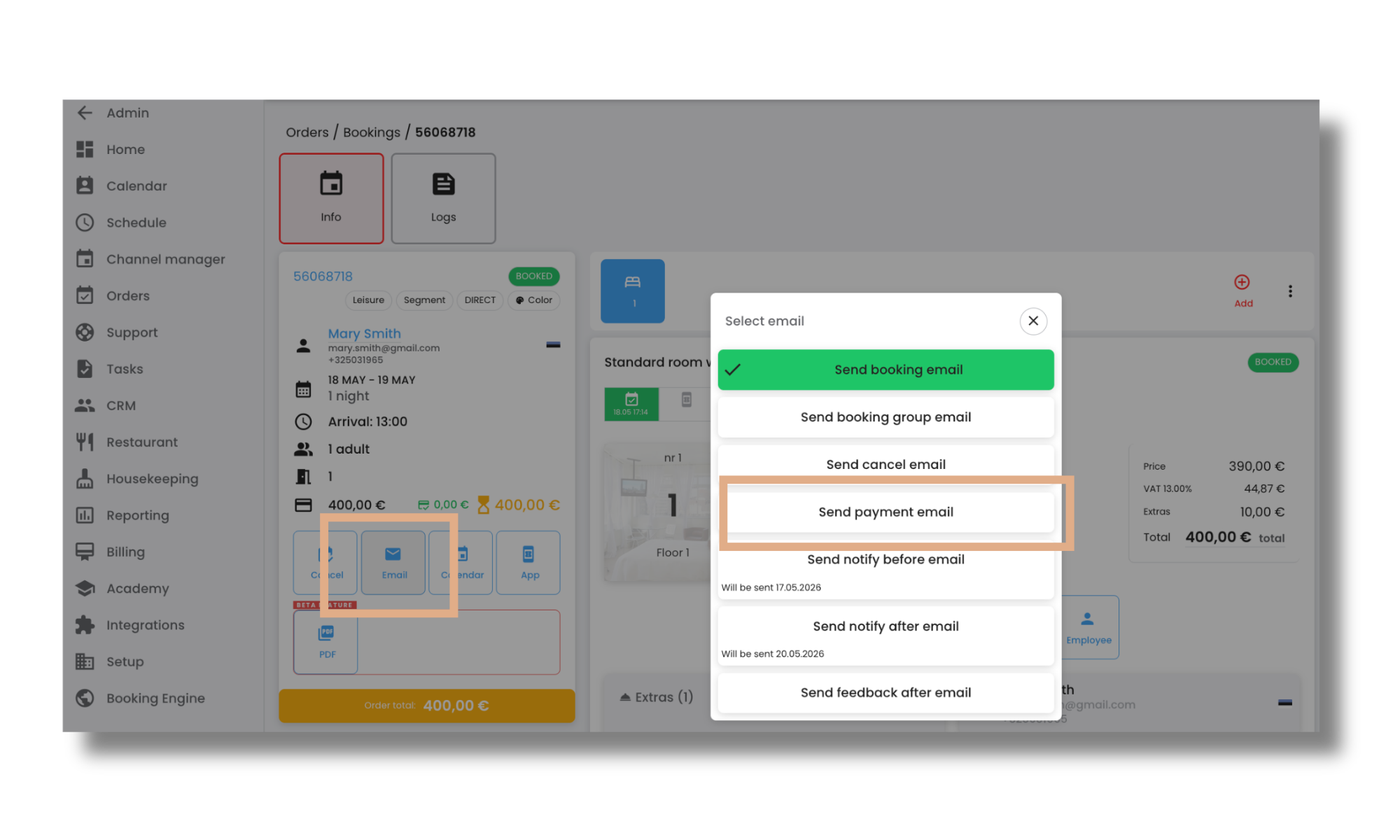
Can a payment link be sent to the guest?
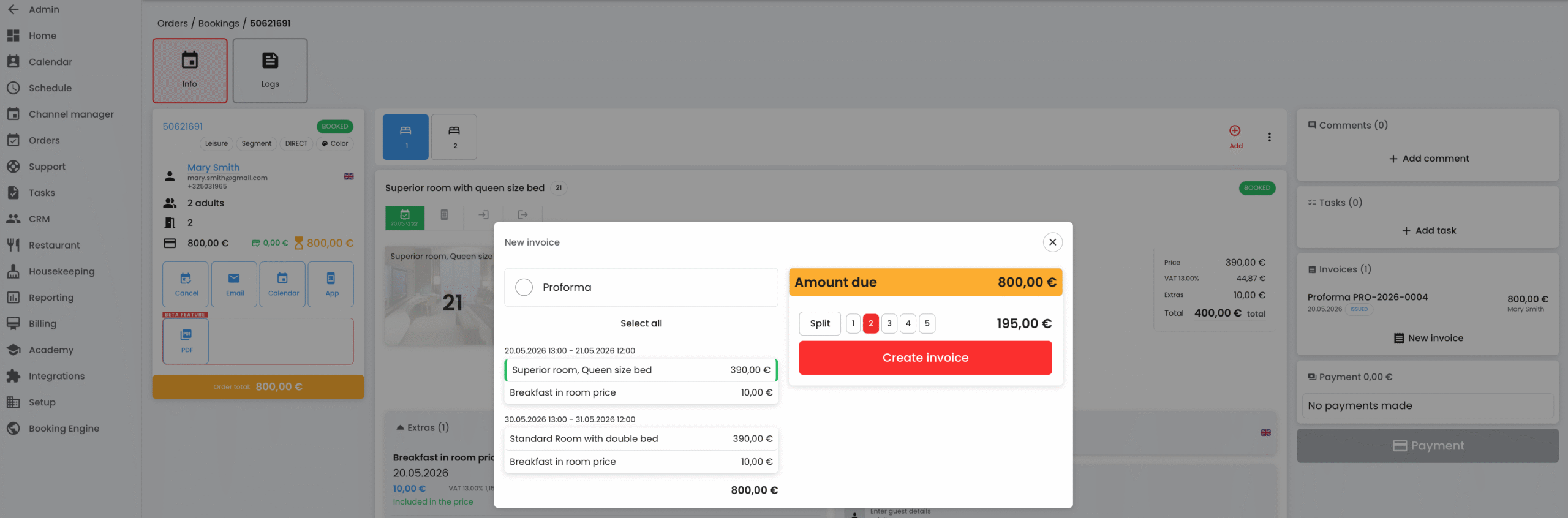
Can the cost of a service be split into several parts on the invoice issued to the guest?
Yes, it can. Here’s how:
- Go to “Orders” and select the reservation you would like to create an invoice for.
- Start creating the invoice by selecting the service you would like to show on the invoice.
- Select “Split” and enter the number of parts into which you would like to divide the service amount.
Can I create my own numbering sequence for issued invoices?
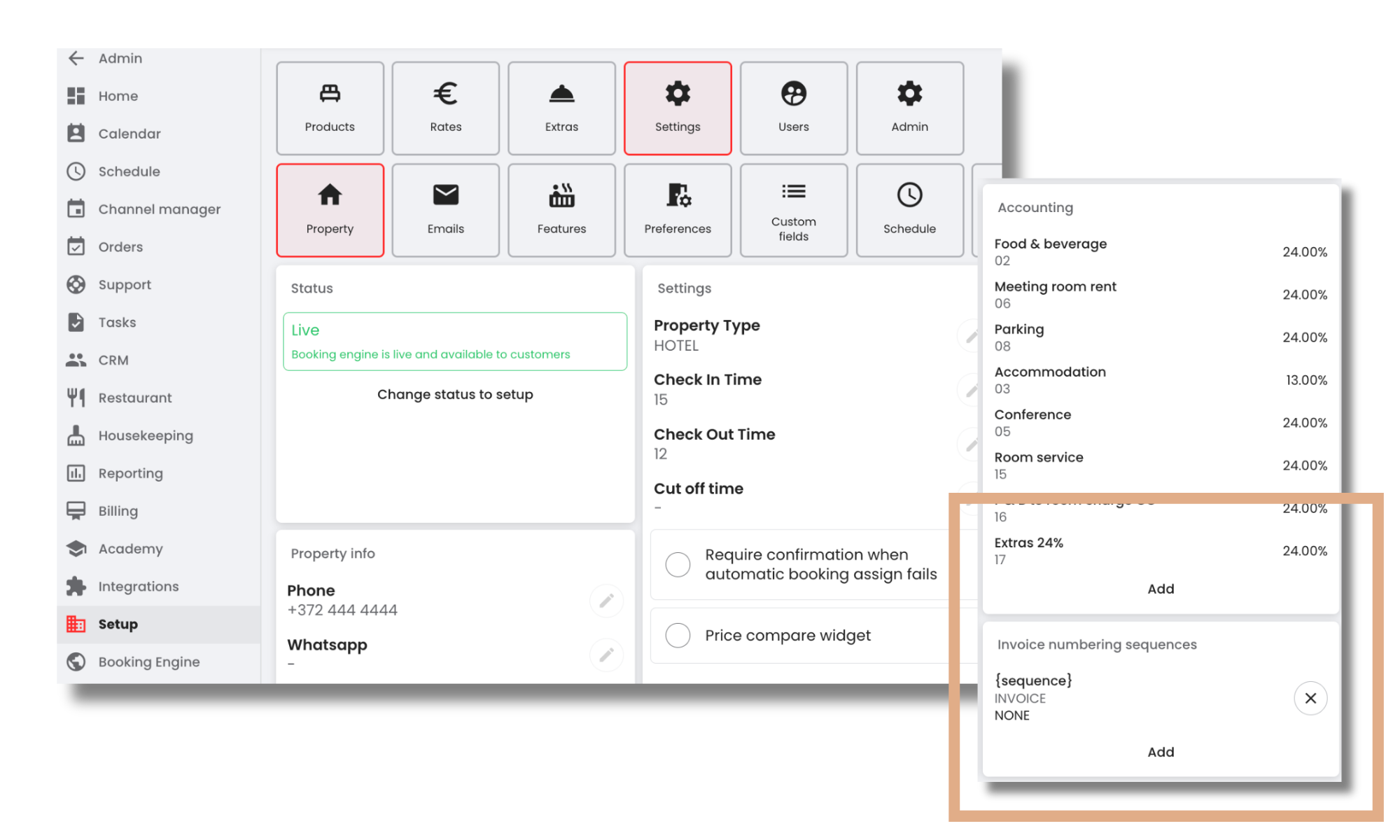
Yes, you can. Here’s how:
- Select “Settings” from the left-hand menu and then “Settings” from the top menu.
- Under the accounting services and items settings, find “Invoice numbering sequence”.
- Start by clicking “Add” and configure the settings according to this guide and the relevant invoice types.
Can a room be automatically marked as “dirty” once the guest has checked in?